How to Generate a Short Film From Claude Using Reel Studio's MCP Endpoint
A practical Claude video generation tutorial for MCP video production: connect Claude to Reel Studio, plan a six-shot film, generate frames and video, review takes, and export.
Claude video generation gets much more useful when Claude is not only writing prompts. The stronger pattern is to give Claude production controls: create a film, define cast, build locations, draft shots, generate frames, review takes, assemble a timeline, add sound, and export. That is the reason Reel Studio exposes a native MCP endpoint.
This tutorial shows how to generate a short film from Claude using Reel Studio's MCP endpoint. It is written for people searching for claude video generation, mcp video production, ai agent filmmaking, or a claude mcp film workflow that is more reliable than one long prompt. The example film is intentionally small: one scene, one location, one main character, six shots, and a final export checkpoint.
The important idea is simple. Claude should behave like a production assistant, not like a slot machine. It can plan the film, call Reel Studio tools, wait for jobs, inspect results, and keep a production log. You still direct the taste decisions.
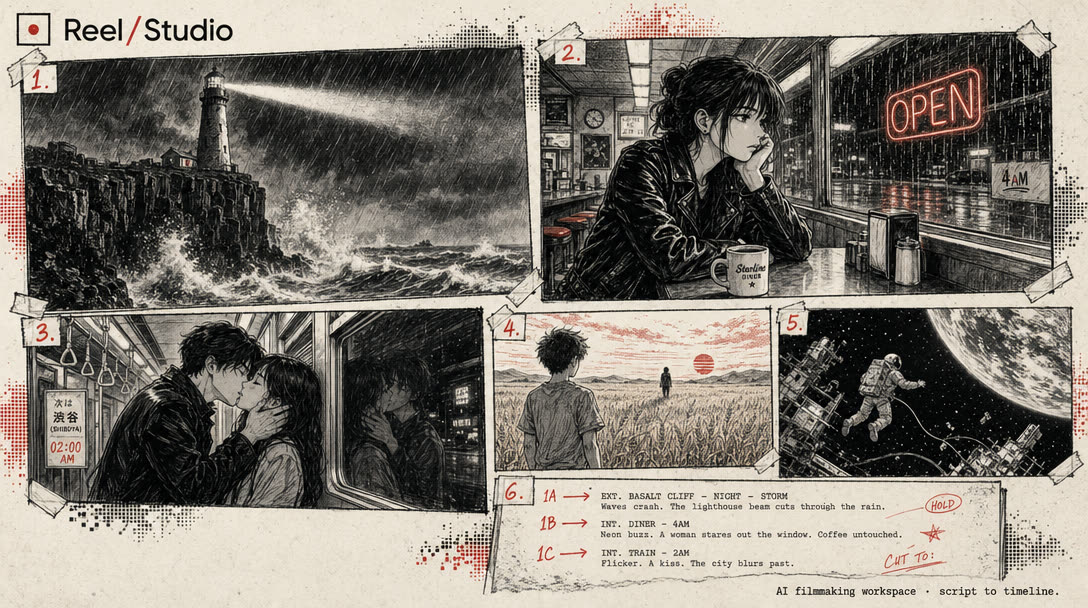
What You Need
Before you start, set up four pieces:
- A Claude client that can connect to remote or configured MCP servers.
- A Reel Studio account with credits in the workspace you want Claude to use.
- A personal access token from Reel Studio Settings - API & MCP.
- A short film brief that Claude can turn into a six-shot plan.
If your Claude client does not support remote MCP directly, use the MCP configuration route your client supports. The core inputs are the same: the Reel Studio MCP URL, an Authorization bearer token, and the workspace ID header.
1. Create A Token
Open Reel Studio, go to Settings - API & MCP, and create a personal access token. Copy it immediately. Treat it like a password because Claude will use it to operate your film workspace and spend credits.
Also copy the workspace ID shown beside the token setup. Reel Studio uses workspaces to scope films, credits, assets, and exports. Sending the workspace ID keeps Claude from guessing where the film should live.
Endpoint:
https://app.reel.studio/api/mcp

Required headers:
Authorization: Bearer rs_pat_...
x-workspace-id: <workspace-id>
2. Connect Claude
Add Reel Studio as an MCP server in your Claude configuration. The exact UI changes between Claude clients, but the structure should look like this:
{
  "mcpServers": {
    "reelstudio": {
      "url": "https://app.reel.studio/api/mcp",
      "headers": {
        "Authorization": "Bearer rs_pat_...",
        "x-workspace-id": "workspace_..."
      }
    }
  }
}
Once connected, ask Claude to list the Reel Studio tools it can see. You are looking for film, cast, location, shot, generation, review, timeline, and export tools. If Claude cannot see those, fix the MCP connection before you try to generate anything.
3. Brief Claude Like A Producer
The first prompt should give Claude a role, a workflow, and a limit. Do not start with "make a cinematic video." Start with a finished shape Claude can execute.
You are my Reel Studio production agent.
Use the connected Reel Studio MCP server.
Read https://reel.studio/llms.txt before taking production actions.

Create a 30-second AI short film called "Signal After Midnight."

Premise:
A night radio host receives a call from a missing astronaut who is still orbiting above the city.

Constraints:
- One scene, one main character, one control-room location.
- Six shots, about five seconds each.
- Generate frames before video.
- Review takes before promotion.
- Ask before spending a large batch of credits or starting final export.
- Keep a short production log after every phase.
This is the core ai agent filmmaking move. Claude gets the authority to run routine production, but not the authority to rewrite the film or export without approval.
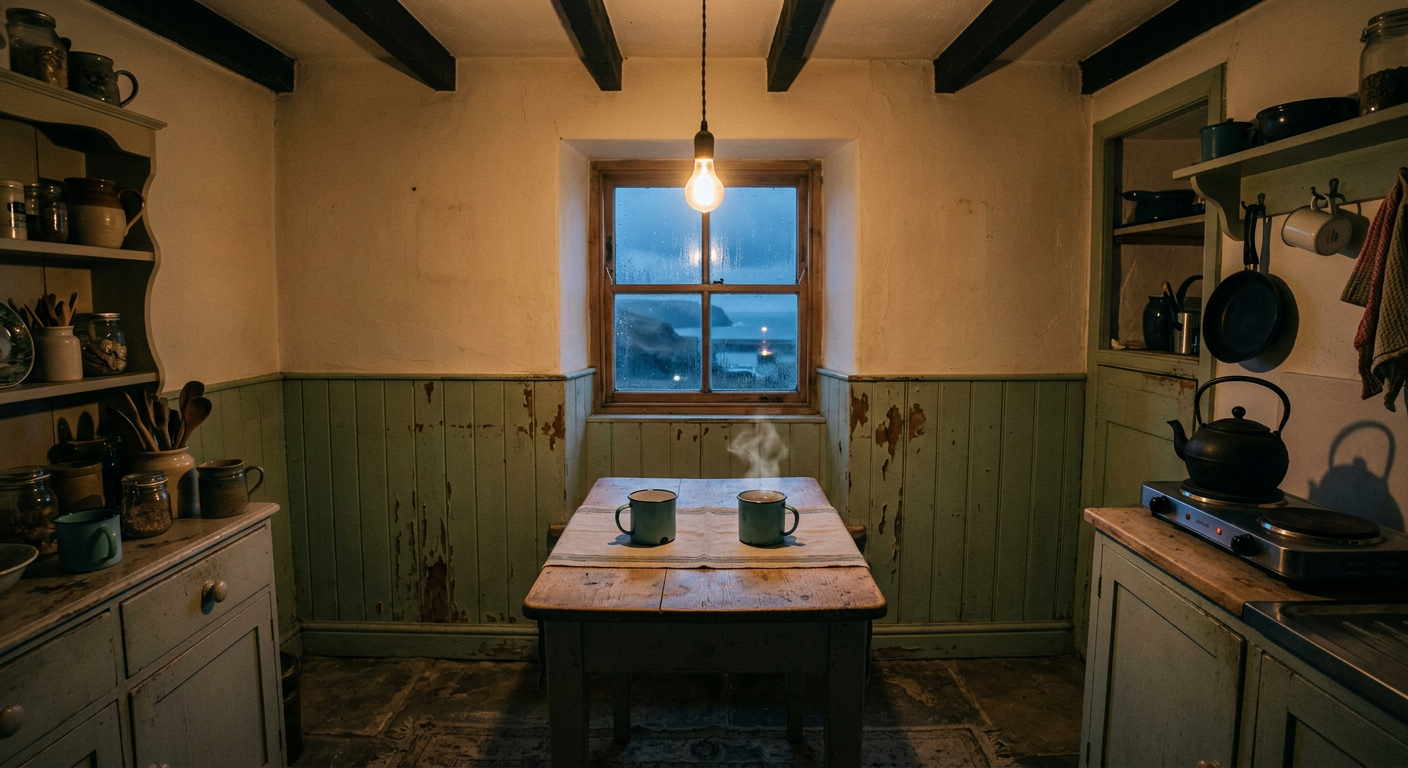
4. Build References First
A claude mcp film works best when the agent creates film memory before it creates motion. Ask Claude to make the film, define the lead character, create a location, then generate reference stills. Those assets become anchors for later shots.
Create the film and add:
- Lead: Nira, late 30s, calm radio host, tired eyes, charcoal sweater, silver headphones.
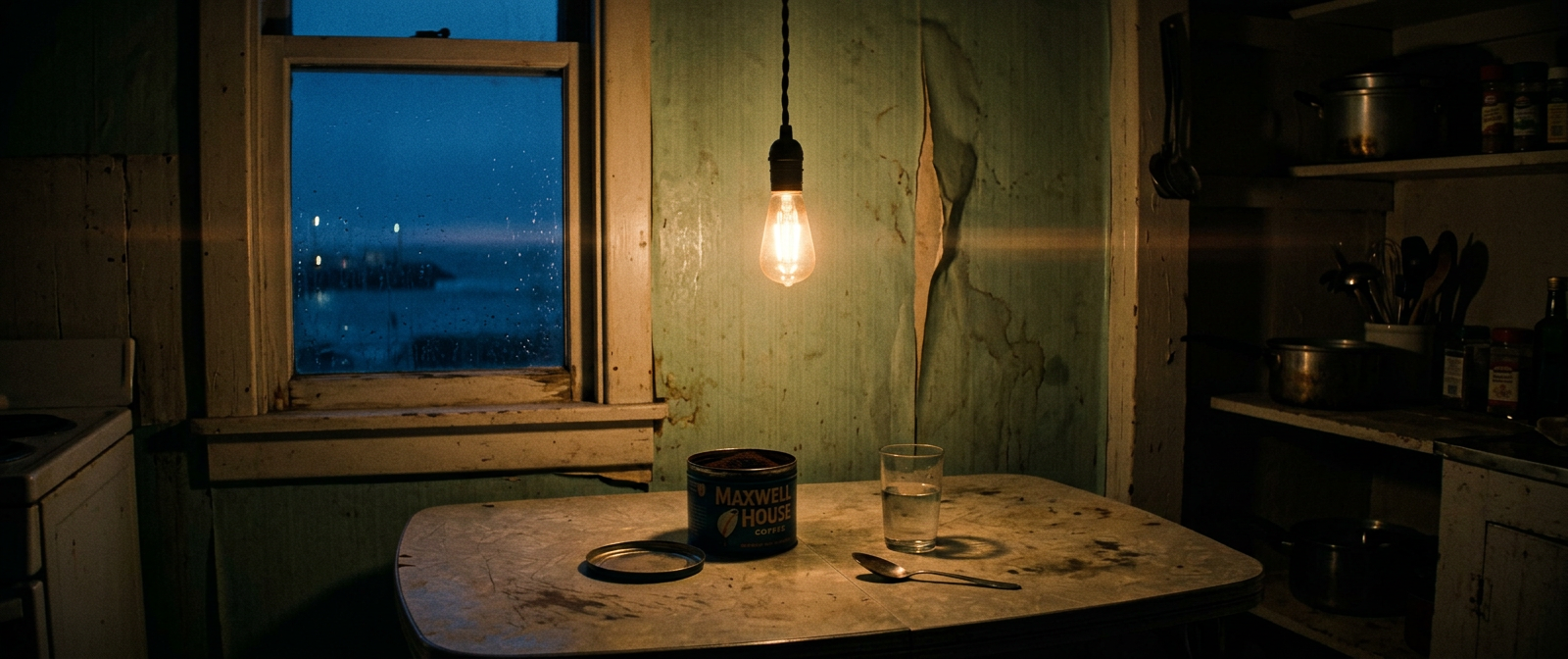
- Location: midnight radio control room, rain on glass, old console, city lights beyond the window.

Generate one cast portrait for Nira.
Generate one location image for the radio control room.
Do not generate shot video yet.
This step prevents the common failure mode in Claude video generation: the first shot looks great, then the second shot quietly changes the actor, wardrobe, room, or time of day. Reel Studio's references give Claude stable objects to reuse.
5. Draft The Six-Shot Plan
Now ask Claude to create coverage. Six shots is enough to prove the pipeline without turning the first run into a sprawling production.
Draft a six-shot plan:
1. Wide establishing shot of the radio room at midnight.
2. Medium shot of Nira adjusting the old console.
3. Insert of the signal meter jumping.
4. Close-up as she hears the astronaut's voice.
5. Reverse angle toward the rain-streaked window and city lights.
6. Final push in as she answers, "I can hear you."

For each shot, write a frame prompt and a separate motion prompt.
Use @{Nira} and #{Radio Control Room} references wherever possible.
Notice the split between frame prompt and motion prompt. The frame prompt establishes the image. The motion prompt should be shorter: camera movement, performance beat, environmental motion, and hard constraints like no new characters or no text.
6. Generate Frames, Then Video
Ask Claude to generate two to four still frames per important shot. Have it review them for identity, location, composition, and story fit. Only after a frame passes should Claude animate it.
For each of the six shots:
- Generate 2 frame takes.
- Review the takes against Nira and the radio room references.
- Promote the best passing frame.
- If both fail, make one targeted fix and retry once.
- After all six promoted frames exist, ask me before video generation.
This is the difference between mcp video production and prompt gambling. Claude is not trying one huge request and hoping for a film. It is running a controlled production loop: generate, review, promote, then move to the next stage.

7. Review, Cut, Sound, Export
After Claude generates the six videos, make it stop and summarize the state of the film. The summary should include the chosen take for each shot, any continuity concerns, estimated runtime, and whether every shot has audio needs.
Review the promoted video takes.
Create a timeline in shot order.
Add restrained rain, radio static, one low music bed, and the final spoken line.
Show me:
- shot order
- total runtime
- selected take IDs
- audio layers
- open risks

Do not start export until I approve.
When the timeline is approved, Claude can start the export and return the final URL. That URL is the proof that the workflow worked: Claude used MCP to create assets, not just describe them.
Troubleshooting Claude MCP Film Runs
If Claude says it cannot access Reel Studio tools, check the MCP server URL and token. If Claude can create records but generation fails, check workspace credits and provider availability. If identity drifts, go back to references and frame review instead of retrying video blindly.
If Claude moves too fast, add stricter checkpoints. Tell it to pause before batch generation, timeline replacement, and export. Good MCP video production is not about removing the human. It is about letting the agent do the repetitive production work while the human keeps taste, budget, and final approval.
Copy-Paste Launch Prompt
You are my Claude MCP film producer inside Reel Studio.
Use Reel Studio's MCP endpoint to produce a complete six-shot AI short.

Read /llms.txt first.
Create references before shots.
Generate frames before video.
Review every take before promotion.
Ask before large credit spend, timeline replacement, or export.
Keep a production log.

Film:
"Signal After Midnight" - a 30-second radio-room sci-fi short about a host receiving a call from a missing astronaut.

Deliver:
Six shots, simple sound design, final export URL, and a brief summary of how the film was made.
That is the defensible Reel Studio category: claude video generation with real production state, native MCP controls, review loops, and a finished film at the end.